Nov 26, 20257 min read

CSS :has() Selector Tutorial with Examples

Master the CSS :has() parent selector with practical examples. Learn to select parent elements and create conditional styling without JavaScript.

CSS :has() Selector Tutorial with Examples

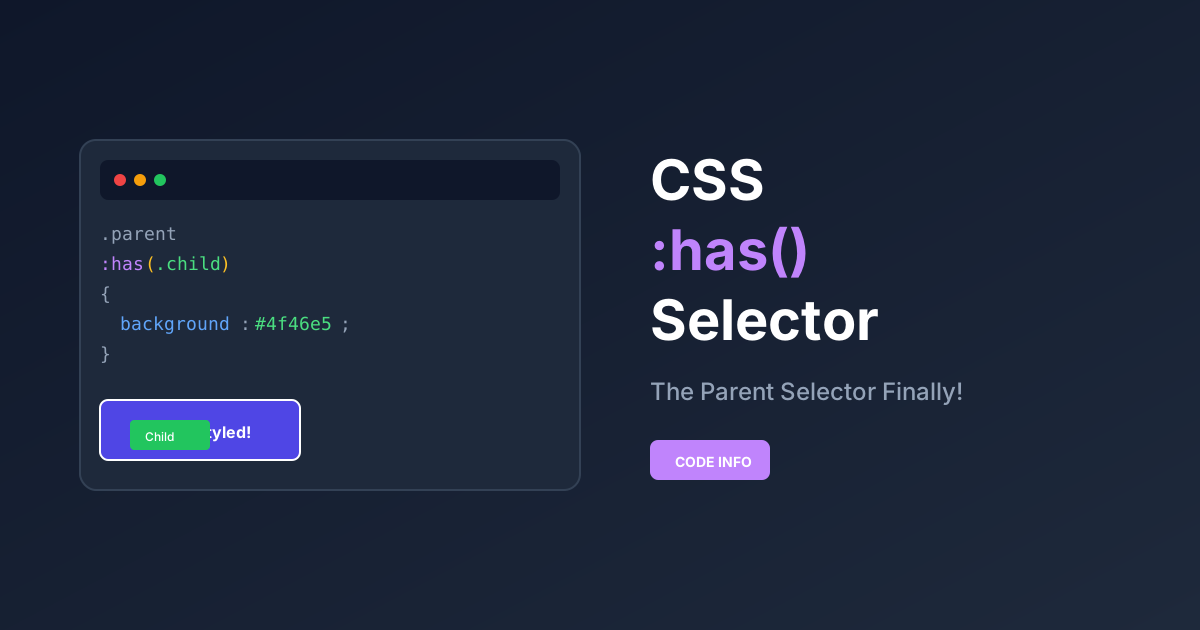
The CSS :has() selector is a game-changing feature that finally allows developers to select parent elements based on their children. Often called the "parent selector," this powerful pseudo-class has been one of the most requested CSS features for decades. In this complete tutorial, you'll learn how to use CSS :has() selector with practical, real-world examples.

What is the CSS :has() Selector?

The CSS :has() pseudo-class represents an element if any of the selectors passed as parameters match at least one element when anchored against this element. In simpler terms, it lets you style a parent element based on what it contains.

Before :has(), CSS could only select elements in a top-down fashion — you could style children based on their parents, but never the other way around. The :has() selector reverses this limitation, opening up possibilities that previously required JavaScript.

Basic Syntax

css
1/* Select parent that contains a specific child */
2parent:has(child) {
3 /* styles */
4}
5
6/* Select element that has a specific sibling */
7element:has(+ sibling) {
8 /* styles */
9}

Why is CSS :has() So Important?

The CSS has selector is revolutionary for several reasons:

1. Eliminates JavaScript Dependencies

Many interactive UI patterns that previously required JavaScript event listeners can now be achieved with pure CSS. Form validation states, hover effects on parent elements, and conditional layouts become simpler.

2. Better Performance

CSS-based solutions are typically faster than JavaScript equivalents because they're handled by the browser's rendering engine directly, without the overhead of JavaScript execution.

3. Cleaner Code

Instead of adding and removing classes with JavaScript, you can write declarative CSS rules that automatically apply based on the DOM structure.

4. Progressive Enhancement

Since :has() is now supported in all major browsers, you can use it with confidence while providing fallbacks for older browsers.

Browser Support for CSS :has()

The CSS :has() selector browser support has reached excellent levels in 2025:

  • Chrome: 105+ (September 2022)
  • Firefox: 121+ (December 2023)
  • Safari: 15.4+ (March 2022)
  • Edge: 105+ (September 2022)

This means over 95% of global users can experience :has() selector functionality without any issues.

Step-by-Step: Using CSS :has() Selector

Follow these steps to master the CSS :has() pseudo-class and implement it in your projects.

Step 1: Understanding the Basic Syntax

Start by learning the basic syntax of the :has() selector. The pattern is parent:has(child) where the parent element is selected if it contains the specified child.

css
1/* Select any div that contains an image */
2div:has(img) {
3 border: 2px solid blue;
4}

Step 2: Styling Form Input States

One of the most common uses of :has() is highlighting form containers based on input focus state.

css
1/* Highlight form group when input is focused */
2.form-group:has(input:focus) {
3 border-color: #4f46e5;
4 box-shadow: 0 0 0 3px rgba(79, 70, 229, 0.1);
5}

Step 3: Creating Conditional Layouts

Use :has() to change layouts based on content presence, like styling cards differently when they contain images.

css
1/* Card with image has different layout */
2.card:has(img) {
3 display: grid;
4 grid-template-rows: 200px 1fr;
5}

Step 4: Combining with Other Selectors

Combine :has() with :not() and sibling selectors for advanced patterns.

css
1/* Select elements without images */
2.card:not(:has(img)) {
3 padding: 2rem;
4}

Step 5: Building Interactive Components

Create interactive UI components that respond to child element states without JavaScript.

css
1/* Disable submit when form has invalid inputs */
2form:has(input:invalid) button[type="submit"] {
3 opacity: 0.5;
4 pointer-events: none;
5}

Practical CSS :has() Examples

Let's dive into practical examples that demonstrate the power of the CSS :has() pseudo-class. Each example shows real-world use cases you can implement in your projects today.

Example 1: Form Input States

One of the most common uses of :has() is styling form containers based on input states:

css
1/* Highlight form group when input is focused */
2.form-group:has(input:focus) {
3 border-color: #4f46e5;
4 box-shadow: 0 0 0 3px rgba(79, 70, 229, 0.1);
5}
6
7/* Style label when input has value */
8.form-group:has(input:not(:placeholder-shown)) label {
9 color: #4f46e5;
10 transform: translateY(-20px) scale(0.85);
11}

Example 2: Card with Image Detection

Style cards differently based on whether they contain an image:

css
1/* Card without image gets more padding */
2.card:not(:has(img)) {
3 padding: 2rem;
4}
5
6/* Card with image has different layout */
7.card:has(img) {
8 display: grid;
9 grid-template-rows: 200px 1fr;
10}

Example 3: Navigation Active States

Highlight parent menu items when a submenu link is active:

css
1/* Style parent nav item when child is active */
2.nav-item:has(.submenu a.active) {
3 background-color: #f0f9ff;
4 border-left: 3px solid #0ea5e9;
5}

Example 4: Conditional Grid Layouts

Change grid layout based on the number of children:

css
1/* 2-column layout if has more than 3 items */
2.grid-container:has(:nth-child(4)) {
3 grid-template-columns: repeat(2, 1fr);
4}
5
6/* 3-column layout if has more than 6 items */
7.grid-container:has(:nth-child(7)) {
8 grid-template-columns: repeat(3, 1fr);
9}

Example 5: Empty State Handling

Show different content when a container is empty:

css
1/* Hide list when empty */
2.todo-list:has(li) {
3 display: block;
4}
5
6/* Show empty state message */
7.empty-state {
8 display: block;
9}
10
11.todo-list:has(li) + .empty-state {
12 display: none;
13}

Interactive Demo

Below is a complete interactive demo showcasing various CSS :has() selector examples. Interact with the form, buttons, and cards to see how parent elements respond to their children's states — all without a single line of JavaScript!

CSS :has() Selector Examples
1<!DOCTYPE html>
2<html lang="en">
3<head>
4 <meta charset="UTF-8">
5 <meta name="viewport" content="width=device-width, initial-scale=1.0">
6 <title>CSS :has() Selector Examples | Code Info</title>
7 <link rel="stylesheet" href="style.css">
8</head>
9<body>
10 <div class="container">
11 <h1 class="page-title">CSS :has() Selector Examples</h1>
12 <p class="subtitle">Interactive demos - No JavaScript required!</p>
13
14 <!-- Example 1: Form Input States -->
15 <section class="demo-section">
16 <h2 class="section-title">1. Form Input States</h2>
17 <p class="section-desc">Click on inputs to see parent styling change</p>
18
19 <div class="form-demo">
20 <div class="form-group">
21 <label for="name">Full Name</label>
22 <input type="text" id="name" placeholder="Enter your name">
23 <span class="focus-indicator">Focused!</span>
24 </div>
25
26 <div class="form-group">
27 <label for="email">Email Address</label>
28 <input type="email" id="email" placeholder="Enter your email">
29 <span class="focus-indicator">Focused!</span>
30 </div>
31
32 <div class="form-group">
33 <label for="message">Message</label>
34 <textarea id="message" placeholder="Type your message..."></textarea>
35 <span class="focus-indicator">Focused!</span>
36 </div>
37 </div>
38 </section>
39
40 <!-- Example 2: Card with/without Image -->
41 <section class="demo-section">
42 <h2 class="section-title">2. Cards: With vs Without Image</h2>
43 <p class="section-desc">:has(img) detects image presence automatically</p>
44
45 <div class="cards-demo">
46 <div class="card">
47 <img src="data:image/svg+xml,%3Csvg xmlns='http://www.w3.org/2000/svg' width='400' height='200' viewBox='0 0 400 200'%3E%3Crect fill='%234f46e5' width='400' height='200'/%3E%3Ctext x='50%25' y='50%25' fill='white' text-anchor='middle' dy='.3em' font-family='system-ui' font-size='18'%3ECard Image%3C/text%3E%3C/svg%3E" alt="Card image">
48 <div class="card-content">
49 <h3>Card with Image</h3>
50 <p>This card has an image, so it gets a grid layout with the image on top.</p>
51 </div>
52 </div>
53
54 <div class="card">
55 <div class="card-content">
56 <span class="card-badge">No Image</span>
57 <h3>Card without Image</h3>
58 <p>This card has no image, so it gets more padding and a centered layout with an icon.</p>
59 </div>
60 </div>
61
62 <div class="card">
63 <img src="data:image/svg+xml,%3Csvg xmlns='http://www.w3.org/2000/svg' width='400' height='200' viewBox='0 0 400 200'%3E%3Crect fill='%2310b981' width='400' height='200'/%3E%3Ctext x='50%25' y='50%25' fill='white' text-anchor='middle' dy='.3em' font-family='system-ui' font-size='18'%3EAnother Image%3C/text%3E%3C/svg%3E" alt="Card image">
64 <div class="card-content">
65 <h3>Another Image Card</h3>
66 <p>Consistent styling is applied automatically using CSS :has().</p>
67 </div>
68 </div>
69 </div>
70 </section>
71
72 <!-- Example 3: Checkbox Toggle (Dark Mode) -->
73 <section class="demo-section">
74 <h2 class="section-title">3. Toggle States (Pure CSS)</h2>
75 <p class="section-desc">Check the box to change the container style</p>
76
77 <div class="toggle-demo">
78 <div class="toggle-box">
79 <label class="toggle-label">
80 <input type="checkbox" class="toggle-checkbox">
81 <span class="toggle-switch"></span>
82 <span class="toggle-text">Enable Dark Mode</span>
83 </label>
84 <div class="toggle-content">
85 <p>This entire box changes style when the checkbox is checked — using only CSS :has()!</p>
86 <div class="toggle-preview">
87 <div class="preview-item"></div>
88 <div class="preview-item"></div>
89 <div class="preview-item"></div>
90 </div>
91 </div>
92 </div>
93 </div>
94 </section>
95
96 <!-- Example 4: Navigation Active States -->
97 <section class="demo-section">
98 <h2 class="section-title">4. Navigation with Submenu</h2>
99 <p class="section-desc">Parent highlights when child has .active class</p>
100
101 <nav class="nav-demo">
102 <ul class="nav-list">
103 <li class="nav-item">
104 <a href="#">Home</a>
105 </li>
106 <li class="nav-item has-submenu">
107 <a href="#">Products</a>
108 <ul class="submenu">
109 <li><a href="#">Electronics</a></li>
110 <li><a href="#" class="active">Clothing</a></li>
111 <li><a href="#">Books</a></li>
112 </ul>
113 </li>
114 <li class="nav-item has-submenu">
115 <a href="#">Services</a>
116 <ul class="submenu">
117 <li><a href="#">Consulting</a></li>
118 <li><a href="#">Development</a></li>
119 </ul>
120 </li>
121 <li class="nav-item">
122 <a href="#">Contact</a>
123 </li>
124 </ul>
125 </nav>
126 </section>
127
128 <!-- Example 5: Button Group States -->
129 <section class="demo-section">
130 <h2 class="section-title">5. Interactive Button Group</h2>
131 <p class="section-desc">Container responds to button hover/focus</p>
132
133 <div class="button-group-demo">
134 <div class="button-group">
135 <button class="btn btn-primary">Primary</button>
136 <button class="btn btn-secondary">Secondary</button>
137 <button class="btn btn-outline">Outline</button>
138 </div>
139 <p class="button-hint">Hover over buttons to see container effect</p>
140 </div>
141 </section>
142
143 </div>
144</body>
145</html>

Advanced CSS :has() Techniques

Combining :has() with Other Selectors

The true power of :has() emerges when combined with other CSS selectors:

css
1/* Select article that has both image and blockquote */
2article:has(img):has(blockquote) {
3 border-left: 4px solid #8b5cf6;
4}
5
6/* Select form that has any invalid input */
7form:has(input:invalid) button[type="submit"] {
8 opacity: 0.5;
9 pointer-events: none;
10}
11
12/* Style table row if any cell is empty */
13tr:has(td:empty) {
14 background-color: #fef3c7;
15}

Using :has() with Adjacent Sibling Combinator

The :has() selector also works with sibling combinators:

css
1/* Style heading if followed by paragraph */
2h2:has(+ p) {
3 margin-bottom: 0.5rem;
4}
5
6/* Add spacing after image if followed by figcaption */
7img:has(+ figcaption) {
8 margin-bottom: 0.75rem;
9}

Negating :has() with :not()

Combine :has() with :not() for powerful exclusion patterns:

css
1/* Style sections without headings */
2section:not(:has(h1, h2, h3)) {
3 padding-top: 1rem;
4}
5
6/* Cards without buttons get different style */
7.card:not(:has(button)) {
8 cursor: default;
9}

CSS :has() vs JavaScript: When to Use What

While CSS :has() is powerful, it's not a complete JavaScript replacement. Here's a guide:

Use CSS :has() When:

  • Styling based on child element presence
  • Form validation visual feedback
  • Hover states that affect parent elements
  • Layout changes based on content
  • Simple toggle states tied to DOM structure

Use JavaScript When:

  • You need to modify the DOM
  • Complex conditional logic is required
  • You need to store or process data
  • Animations require precise timing control
  • Cross-component state management

Performance Considerations

The CSS :has() selector performance is generally excellent, but keep these tips in mind:

Do's:

  • Use specific selectors inside :has()
  • Limit the scope with class names
  • Combine with structural pseudo-classes

Don'ts:

  • Avoid *:has() (selecting all elements)
  • Don't nest :has() too deeply
  • Avoid overly complex selectors inside :has()
css
1/* Good - specific and scoped */
2.form-group:has(input:focus) { }
3
4/* Avoid - too broad */
5*:has(input) { }

Common Use Cases for CSS :has()

Here are popular scenarios where the CSS has selector shines:

Use CaseDescription
Form ValidationStyle containers based on input validity
Card LayoutsAdjust layout based on content presence
NavigationHighlight parent menu items
Dark ModeToggle styles based on checkbox state
Quantity QueriesChange layout based on item count
Empty StatesShow/hide content based on children
Media DetectionStyle containers with images/videos
AccessibilityEnhance focus visibility for parents

Frequently Asked Questions

What is the CSS :has() selector used for?

The CSS :has() selector is used to select and style parent elements based on their children or descendants. It's commonly called the "parent selector" because it allows styling elements based on what they contain, which was previously impossible in CSS.

Is CSS :has() supported in all browsers?

Yes, as of 2025, CSS :has() is supported in all major browsers including Chrome, Firefox, Safari, and Edge. Global browser support is over 95%, making it safe to use in production.

Can CSS :has() replace JavaScript?

CSS :has() can replace JavaScript for many visual state changes like hover effects, focus states, and conditional styling. However, JavaScript is still needed for DOM manipulation, data processing, and complex logic.

How does :has() affect performance?

CSS :has() performance is generally good when used with specific selectors. Avoid using it with universal selectors (*) or in overly complex combinations. The browser optimizes :has() queries efficiently in most cases.

Can I use :has() with :not()?

Yes! Combining :has() with :not() is very powerful. For example, :not(:has(img)) selects elements that don't contain images, enabling sophisticated conditional styling.

Conclusion

The CSS :has() selector is one of the most significant additions to CSS in recent years. It finally gives developers the ability to select parent elements, enabling patterns that previously required JavaScript. With excellent browser support in 2025, there's no reason not to start using it in your projects.

Key takeaways from this tutorial:

  • :has() selects parents based on their children
  • Reduces JavaScript for visual state changes
  • Works with all combinators (child, sibling, descendant)
  • Excellent browser support (95%+ global coverage)
  • Great performance when used with specific selectors

Start experimenting with the CSS :has() pseudo-class in your projects. Once you get comfortable with it, you'll wonder how you ever built UIs without it!

If you found this CSS :has() selector tutorial helpful, share it with your developer friends and follow Code Info for more web development guides!