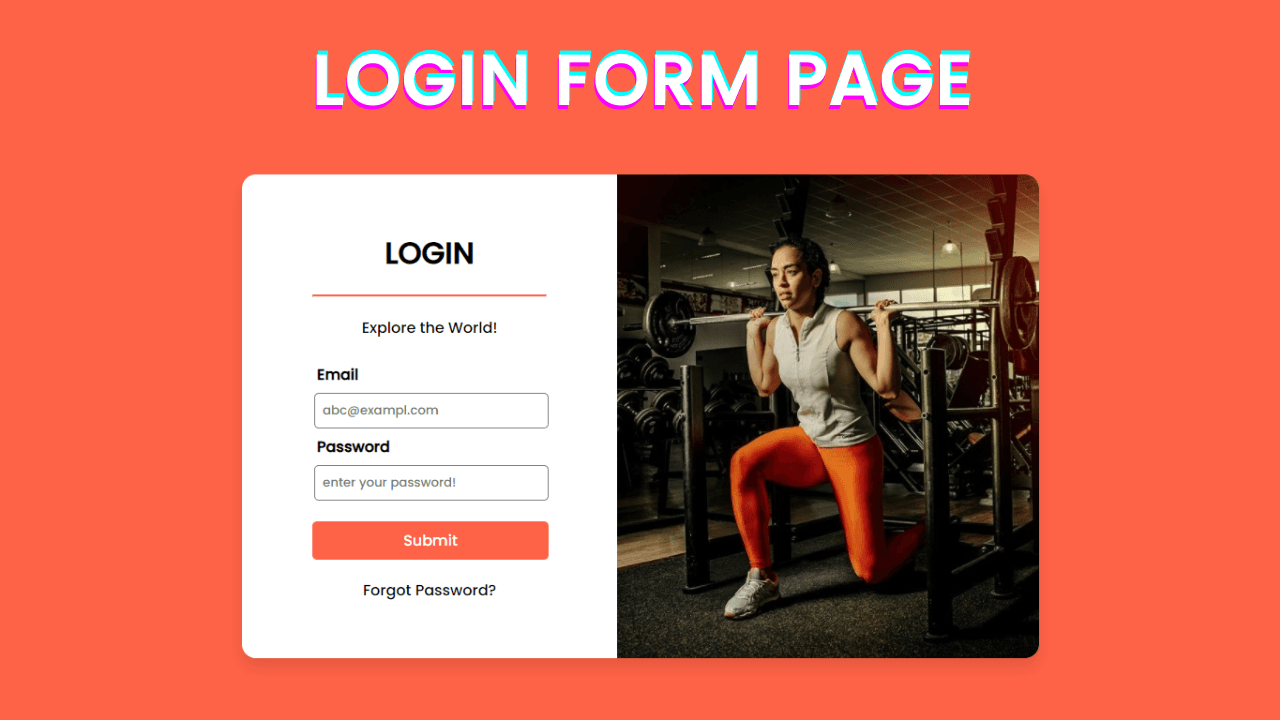
In this article, you will learn how to create Login Form using only HTML & CSS. Earlier in this blog, I have shared a couple of simple Login form, but here in this blog, I am going to create a nice-looking Login Form Page. Apart from this, I have shared many CSS animation examples in my blog. Please make sure to check those as well.
HTML forms are required to collect different kinds of user data inputs, such as contact information like name, email address, phone numbers and credit card information, etc.
.
Forms contain unique factors known as controls like inputbox, checkboxes, radio-buttons, submit buttons, and so on. Customers normally complete a form through enhancing its controls e.g. Entering textual content, choosing gadgets, and so forth. and submitting this form to a web server for further processing.
Input Element
That is the most typically used element inside HTML forms. It allows you to specify diverse types of user enter fields, depending on the type attribute. An input detail can be of kind text area, password area, checkbox, radio button, submit button, reset button, record choose container, as well as several new enter types brought in HTML.I have used input type in this project as a text, password and Submit. The submit button is used to send the form data to a web server.
Source Code:
If you like this login Form, then feel free to use it in your project. First, you have to create two files. One of them is HTML, and the other is CSS. after creating the files, paste the code provided below.
I hope you liked this snippet. If so, please share the blog and follow us in our social media profiles and stay connected with this blog. Thank you for stopping by.