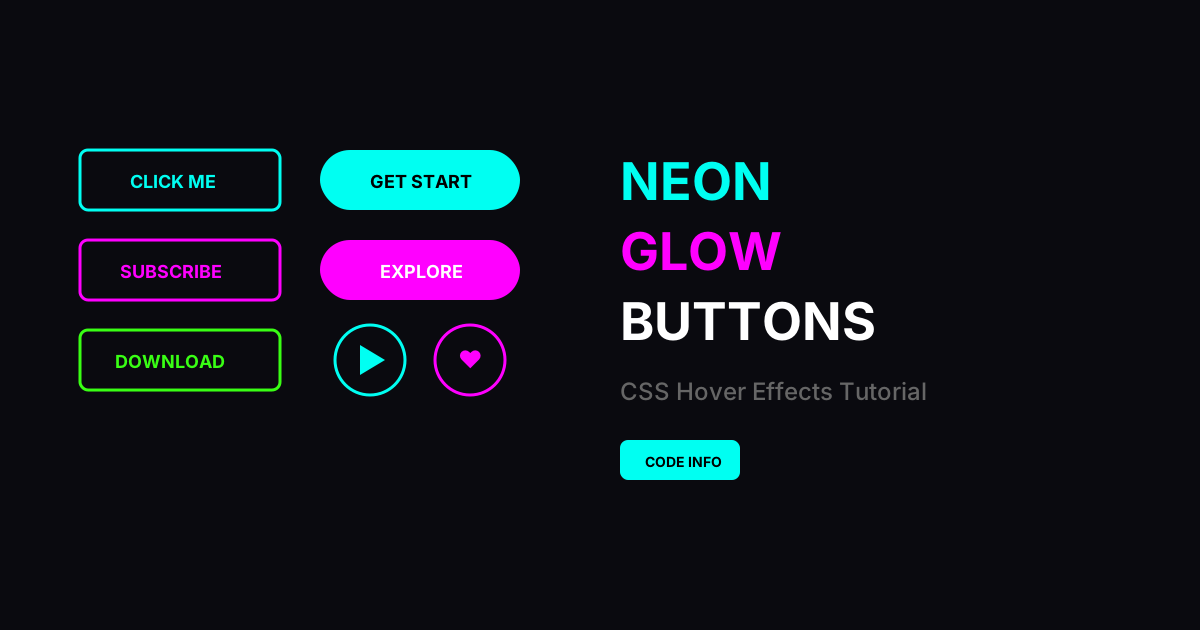
Neon glow button effects have become one of the most eye-catching UI trends in modern web design. These glowing, vibrant buttons add a futuristic, cyberpunk aesthetic that instantly grabs user attention. In this comprehensive tutorial, you'll learn how to create neon glow buttons with CSS using various techniques and animations.
What Are Neon Glow Button Effects?
Neon glow buttons are interactive UI elements that mimic the appearance of neon lights. They feature bright, saturated colors with a soft luminous glow around the edges, creating an effect similar to real neon signs. This style is popular in gaming websites, tech portfolios, music platforms, and any design aiming for a modern, energetic feel.
Key characteristics of neon button effects include:
- Vibrant colors like cyan, magenta, lime green, and electric blue
- Soft outer glow using CSS box-shadow
- Animated transitions on hover and focus states
- Multiple layered shadows for depth and realism
- Optional text glow using text-shadow
Why Use Neon Glow Effects?
Before diving into the code, let's understand why CSS neon effects are so effective:
1. Instant Visual Impact
Neon buttons immediately draw the eye and create a memorable first impression. They're perfect for call-to-action buttons where you want maximum visibility.
2. Modern Aesthetic
The neon style aligns with current design trends including dark mode interfaces, cyberpunk themes, and gaming-inspired designs that are extremely popular in 2025.
3. Pure CSS Implementation
Unlike complex animations that require JavaScript libraries, neon glow effects CSS can be achieved with simple CSS properties, making them lightweight and performant.
4. Highly Customizable
With CSS custom properties, you can easily create different color variations and apply consistent neon styling across your entire project.
The CSS Properties Behind Neon Glow
To create glowing buttons CSS, you'll primarily use these properties:
box-shadow
The box-shadow property is the foundation of neon effects. By stacking multiple shadows with increasing blur radius, you create that characteristic neon glow:
text-shadow
For glowing text inside buttons, text-shadow works similarly:
CSS Filters
The filter property with drop-shadow can create glow effects on complex shapes:
CSS Transitions
Smooth hover animations are essential for polished neon buttons:
10+ Neon Button Examples
Below you'll find a complete collection of neon glow button effects that you can use in your projects. Each example demonstrates a different technique or style.
How to Create a Basic Neon Button
Let's break down the process of creating a CSS neon button step by step:
Step 1: HTML Structure
Start with a simple button element:
Step 2: Base Button Styles
Apply the foundation styles with a dark background to make the glow visible:
Step 3: Add the Glow Effect
Apply multiple box-shadows to create the neon glow:
Step 4: Hover Animation
Intensify the glow on hover for an interactive feel:
Neon Color Palettes
Here are popular color combinations for neon button effects:
| Color Name | Hex Code | Best For |
|---|---|---|
| Cyan | #00fff2 | Tech, Futuristic |
| Magenta | #ff00ff | Creative, Bold |
| Lime | #39ff14 | Gaming, Matrix |
| Electric Blue | #0066ff | Corporate, Modern |
| Orange | #ff6600 | Energy, Action |
| Pink | #ff1493 | Fashion, Fun |
| Purple | #9d00ff | Luxury, Mystery |
| Yellow | #ffff00 | Warning, Attention |
Advanced Neon Button Techniques
Animated Border Glow
Create a moving glow effect around the button border:
Pulsing Glow Effect
Add a breathing animation to the glow:
Multi-Color Gradient Glow
Create buttons with shifting neon colors:
Best Practices for Neon Buttons
1. Use Dark Backgrounds
Neon effects only work well against dark backgrounds. Light backgrounds wash out the glow effect entirely.
2. Limit Usage
Too many glowing elements compete for attention. Use neon buttons sparingly for maximum impact on important CTAs.
3. Consider Accessibility
Ensure sufficient color contrast for text readability. Test with accessibility tools to meet WCAG guidelines.
4. Optimize Performance
Multiple box-shadows can impact performance on lower-end devices. Consider reducing shadow layers for mobile:
5. Add Focus States
Always include visible focus states for keyboard navigation:
Browser Compatibility
CSS neon glow effects work in all modern browsers:
- Chrome 4+
- Firefox 3.5+
- Safari 4+
- Edge 12+
- Opera 10.5+
The box-shadow and text-shadow properties have excellent browser support, making neon effects safe to use in production.
Common Use Cases
Neon glow button effects are perfect for:
- Gaming websites - Match the energetic, immersive feel
- Music and entertainment - Club and concert vibes
- Tech startups - Modern, innovative impression
- Portfolio sites - Stand out from the crowd
- Landing pages - Draw attention to CTAs
- Dark mode interfaces - Complement dark themes beautifully
- Cyberpunk designs - Essential for the aesthetic
- Event promotions - Create excitement and urgency
Frequently Asked Questions
How do I make a button glow in CSS?
To make a button glow in CSS, use the box-shadow property with multiple layers of shadows. Each shadow layer should have increasing blur radius to create a soft, diffused glow effect. Set a bright color like cyan or magenta against a dark background.
What is the best color for neon buttons?
The best colors for neon buttons are bright, saturated hues like cyan (#00fff2), magenta (#ff00ff), lime green (#39ff14), and electric blue (#0066ff). These colors provide maximum contrast and visibility against dark backgrounds.
Can I animate neon glow effects?
Yes! You can animate neon glow effects using CSS keyframes and transitions. Popular animations include pulsing glow, rotating gradient borders, and intensifying glow on hover. Use the animation property with keyframes for continuous effects.
Do neon effects affect website performance?
Multiple box-shadow layers can impact rendering performance on low-end devices. For optimal performance, limit shadow layers to 3-4 maximum, use will-change for animated elements, and consider simpler effects on mobile devices.
How do I add glow to text in CSS?
To add glow to text in CSS, use the text-shadow property with multiple shadow layers:
Conclusion
Neon glow button effects are a powerful way to add visual interest and modern flair to your web projects. With just CSS, you can create stunning, animated buttons that capture attention and enhance user experience.
Key takeaways from this tutorial:
- box-shadow is the primary property for creating glow effects
- Multiple shadow layers create realistic neon appearance
- Transitions and keyframes add interactive animations
- Dark backgrounds are essential for visibility
- Use sparingly for maximum impact
Experiment with different colors, animations, and combinations to create unique neon button styles that match your project's personality.
Related Tutorials
- Button Hover Effect with HTML and CSS
- CSS :has() Selector Tutorial
- Bento Grid Layout with HTML and CSS
- Glassmorphism Login Form with HTML and CSS
If this neon glow button tutorial helped you, share it with fellow developers and follow Code Info for more CSS tutorials and web design inspiration!