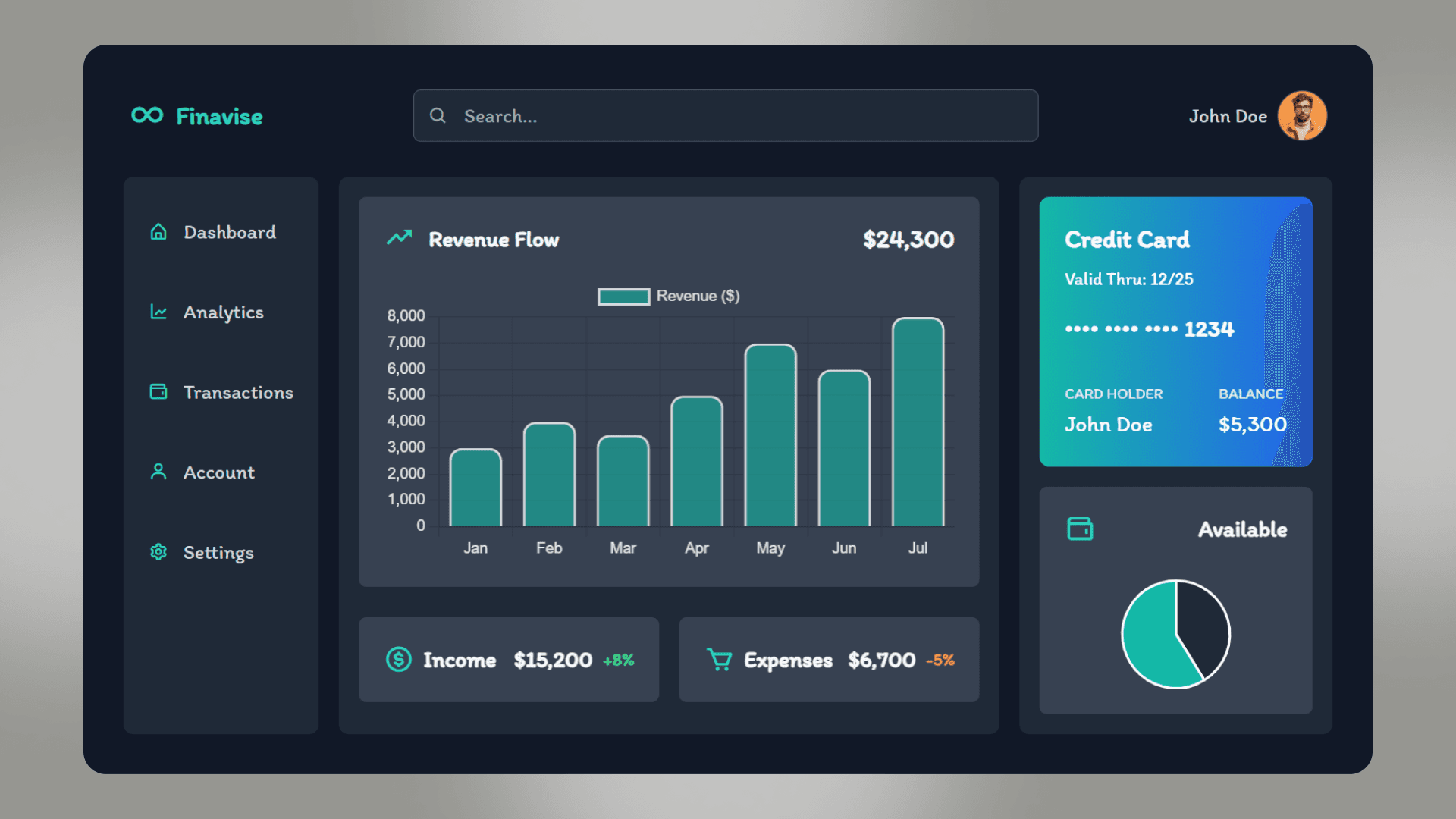
In this tutorial, we’ll will Build Dashboard with HTML Tailwind CSS and JavaScript. This dashboard features a sleek, dark-themed interface with stunning visualizations and interactive components, such as charts and a responsive sidebar. Designed with user experience in mind, it incorporates Tailwind CSS for responsive styling and Chart.js for dynamic data visualizations, making it ideal for those looking to create an eye-catching and functional dashboard.
Introduction to Build Dashboard with HTML Tailwind CSS and JavaScript
Dashboards have become indispensable tools in digital product interfaces, enabling users to view analytics, track progress, and make data-driven decisions quickly. By building a dashboard with HTML and Tailwind CSS, you can create a modular, scalable, and aesthetically pleasing interface without sacrificing performance
In this tutorial, we’re focusing on a few essentials:
-
HTML for structure
-
Tailwind CSS for styling
-
JavaScript for interactivity and data visualization (using Chart.js)
With this approach, you’ll be able to customize your dashboard’s look and feel, add dynamic elements, and create responsive layouts that work seamlessly across all devices.
Setting Up the Project Structure For this dashboard, you’ll need a basic project structure. You’ll create separate files for your HTML, CSS (compiled by Tailwind), and JavaScript.
-
HTML: This will define the dashboard’s structure, layout, and accessibility.
-
Tailwind CSS: Use Tailwind’s utility-first classes for fast and responsive design without writing custom CSS.
-
JavaScript (Chart.js): Chart.js will handle the visual representation of data, helping you generate dynamic charts for data visualization.
Subscribe to my YouTube channel HTML Structure and Layout Let’s dive into the HTML structure for a simple yet functional dashboard. We’ll start with a header, sidebar, and main content area that includes interactive widgets and data charts.
Adding Styles with Tailwind CSS With Tailwind, styling becomes much more efficient. You’ll add classes directly to HTML elements to define their appearance, layout, and responsiveness. Below, we’ll cover how Tailwind is used for each section:
-
Header: This contains the app name, search bar, and profile information.
-
Sidebar: Acts as the navigation menu for different dashboard sections.
-
Main Content Area: Holds dynamic widgets for revenue flow, income, expenses, and available balance.
Creating Interactivity with JavaScript
JavaScript adds functionality to your dashboard. For instance, you can create interactive charts with Chart.js to display data trends.
Source code
If you like this design, then feel free to use it. Copy the code by clicking on Copy button provided below. First, you have to create two files. One of them is HTML and the other is JS after creating these files, paste the code provided below.
Best Practices for Building Dashboards Responsive Design: Ensure your dashboard adjusts to different screen sizes using Tailwind’s responsive classes (lg:hidden, md:flex, etc.). Accessible Colors: Make sure the color contrast is high enough for readability, particularly in dark mode. Minimize JavaScript and CSS: Tailwind CSS and Chart.js are both lightweight, but try to reduce any extra styles and scripts that could slow down performance. Interactive and Informative Charts: Use Chart.js to build intuitive visualizations; avoid overcrowding charts with too much information.
Conclusion
Creating a dashboard with HTML, Tailwind CSS, and JavaScript is a powerful way to deliver a user-friendly interface. Tailwind’s utility classes make styling efficient, while JavaScript enables you to add dynamic elements that improve user engagement. Following best practices for responsive design, accessibility, and code modularity will help you build dashboards that are both visually appealing and highly functional.