Jan 26, 20253 min read

Build a Beautiful Dashboard Design: Modern Website Dashboard

Design a beautiful modern dashboard with HTML, CSS, and JavaScript. Build sidebar menus, data charts, calendars, and responsive layouts.

Build a Beautiful Dashboard Design: Modern Website Dashboard

Ever wanted to create a good-looking dashboard design for your website dashboard? You're in the right place! Today, I'll show you how to build an awesome dashboard using simple web tools. Whether you're new to web design or just looking for fresh ideas, this guide is for you.

What Makes This Dashboard Design Special?

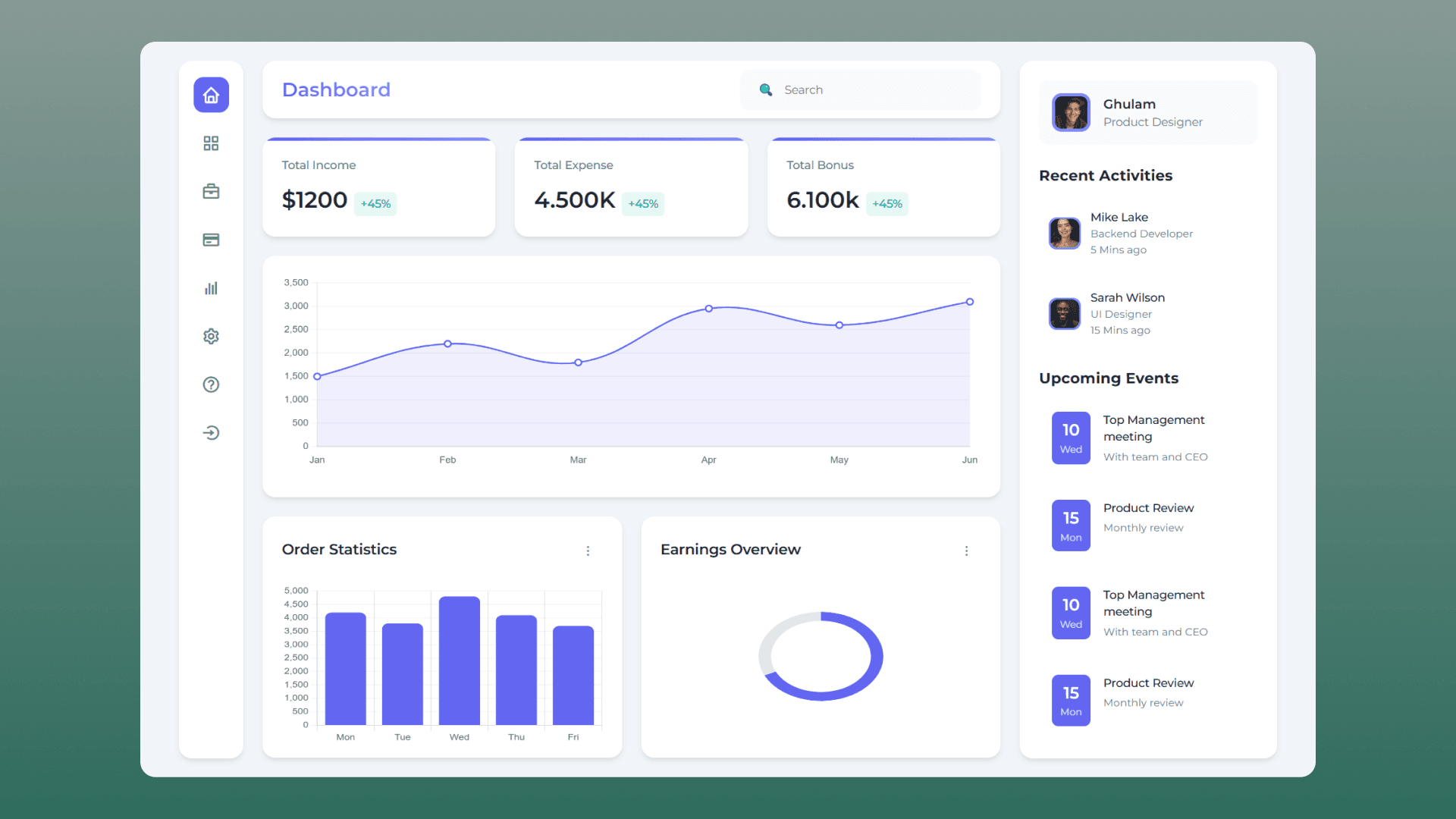
Think of this dashboard as your website's control center. It's like having all your important info on a clean, organized desk. You get:

  • A neat sidebar menu that's easy to use

  • Cool-looking charts that show your data

  • A space to track what's happening

  • A calendar for upcoming events

  • A design that looks good on phones and computers

Let's Break It Down The Website Dashboard

The Menu Bar

We've kept things simple with a sidebar that uses icons. When you hover over an icon, it tells you what it does. It's like having a set of labeled buttons that are always within reach.

Charts That Tell Stories

We've used three different types of charts to show information:

  • A line chart that shows how money comes in over time

  • A bar chart for daily orders

  • A round chart (like a donut) that shows overall earnings

The best part? These charts are interactive - hover over them, and they'll show you the exact numbers.

Colors That Work Together

We picked colors that are easy on the eyes and work well together. The main color is a nice shade of purple (#6366f1), and we've used soft grays for the background. It's like choosing paint colors for a room - they need to match and feel comfortable to look at.

Works on All Devices

Whether you're on your phone, tablet, or computer, the dashboard adjusts to fit your screen. It's like having a rubber band that stretches and shrinks but keeps its shape.

How to Use This Code

Copy the HTML file (it's like the skeleton) Add the CSS file (this makes it pretty) Include Chart.js (this makes the charts work) Change the colors and text to match your style

Making It Your Own

Want to customize it? Here are some easy changes you can make:

  • Change the colors in the CSS file

  • Update the chart data with your numbers

  • Add your own icons to the sidebar

  • Put in your team's profile pictures

Source code

If you like this design, then feel free to use it. Copy the code by clicking on Copy button provided below.

Dashboard Design
1<!DOCTYPE html>
2<html lang="en">
3 <head>
4 <meta charset="UTF-8" />
5 <title>Enhanced Dashboard</title>
6 <link rel="stylesheet" href="style.css" />
7 <link
8 href="https://unpkg.com/boxicons@2.1.4/css/boxicons.min.css"
9 rel="stylesheet"
10 />
11 </head>
12 <body>
13 <div class="dashboard">
14 <div class="sidebar">
15 <div class="sidebar-icon active" data-tooltip="Home">
16 <i class="bx bx-home"></i>
17 </div>
18 <div class="sidebar-icon" data-tooltip="Dashboard">
19 <i class="bx bx-grid-alt"></i>
20 </div>
21 <div class="sidebar-icon" data-tooltip="Projects">
22 <i class="bx bx-briefcase"></i>
23 </div>
24 <div class="sidebar-icon" data-tooltip="Payments">
25 <i class="bx bx-credit-card"></i>
26 </div>
27 <div class="sidebar-icon" data-tooltip="Analytics">
28 <i class="bx bx-bar-chart"></i>
29 </div>
30 <div class="sidebar-icon" data-tooltip="Settings">
31 <i class="bx bx-cog"></i>
32 </div>
33 <div class="sidebar-icon" data-tooltip="Help">
34 <i class="bx bx-help-circle"></i>
35 </div>
36 <div class="sidebar-icon" data-tooltip="Logout">
37 <i class="bx bx-log-in-circle"></i>
38 </div>
39 </div>
40
41 <div class="main-content">
42 <div class="header">
43 <h1>Dashboard</h1>
44 <div class="search-bar">
45 <span>🔍</span>
46 <input type="text" placeholder="Search" />
47 </div>
48 </div>
49
50 <div class="stats">
51 <div class="stat-card">
52 <h3>Total Income</h3>
53 <div class="stat-value">
54 $1200
55 <span>+45%</span>
56 </div>
57 </div>
58 <div class="stat-card">
59 <h3>Total Expense</h3>
60 <div class="stat-value">
61 4.500K
62 <span>+45%</span>
63 </div>
64 </div>
65 <div class="stat-card">
66 <h3>Total Bonus</h3>
67 <div class="stat-value">
68 6.100k
69 <span>+45%</span>
70 </div>
71 </div>
72 </div>
73
74 <div class="chart-container">
75 <canvas id="mainChart"></canvas>
76 </div>
77
78 <div class="bottom-cards">
79 <div class="card">
80 <div class="card-header">
81 <h3>Order Statistics</h3>
82 <div class="more-button"></div>
83 </div>
84 <canvas id="orderChart"></canvas>
85 </div>
86
87 <div class="card">
88 <div class="card-header">
89 <h3>Earnings Overview</h3>
90 <div class="more-button"></div>
91 </div>
92 <canvas id="earningsChart"></canvas>
93 </div>
94 </div>
95 </div>
96
97 <div class="right-sidebar">
98 <div class="profile">
99 <div class="profile-image">
100 <img src="https://randomuser.me/api/portraits/men/32.jpg" alt="Profile Image" />
101 </div>
102 <div class="profile-info">
103 <h3>Ghulam</h3>
104 <p>Product Designer</p>
105 </div>
106 </div>
107
108 <div class="activity-list">
109 <h3>Recent Activities</h3>
110 <div class="activity-item">
111 <div class="activity-image">
112 <img src="https://randomuser.me/api/portraits/men/45.jpg" alt="Profile Image" />
113 </div>
114 <div class="activity-info">
115 <h4>Mike Lake</h4>
116 <p>Backend Developer</p>
117 <p>5 Mins ago</p>
118 </div>
119 </div>
120 <div class="activity-item">
121 <div class="activity-image">
122 <img src="https://randomuser.me/api/portraits/women/44.jpg" alt="Profile Image" />
123 </div>
124 <div class="activity-info">
125 <h4>Sarah Wilson</h4>
126 <p>UI Designer</p>
127 <p>15 Mins ago</p>
128 </div>
129 </div>
130 </div>
131
132 <div class="upcoming-events">
133 <h3>Upcoming Events</h3>
134 <div class="event-item">
135 <div class="event-date">
136 <div class="day">10</div>
137 <div class="weekday">Wed</div>
138 </div>
139 <div class="event-info">
140 <h4>Top Management meeting</h4>
141 <p>With team and CEO</p>
142 </div>
143 </div>
144 <div class="event-item">
145 <div class="event-date">
146 <div class="day">15</div>
147 <div class="weekday">Mon</div>
148 </div>
149 <div class="event-info">
150 <h4>Product Review</h4>
151 <p>Monthly review</p>
152 </div>
153 </div>
154 </div>
155 </div>
156 </div>
157
158 <script src="https://cdn.jsdelivr.net/npm/chart.js"></script>
159 <script src="script.js"></script>
160 </body>
161</html>

Tips for Success

  • Test it on different devices

  • Make sure the charts show real data

  • Keep the design clean and simple

  • Update the content regularly

Conclusion

Building a dashboard doesn't have to be complicated. With some basic HTML, CSS, and a bit of JavaScript, you can create something that looks professional and works great. Give it a try, and don't be afraid to make changes to suit your needs!